Category: Azure

Deploying AI Applications to Azure Web Apps: A Practical Architecture Guide

Stuff I learned from Ignite 2025

Azure Web Apps (part of Azure App Service) remains one of the most effective platforms for hosting production AI-enabled applications on Azure. With first-class support for managed identities, private networking, and native integration with Azure AI services, it provides a strong balance between operational simplicity and enterprise-grade security.

This article walks through a reference architecture for deploying AI applications to Azure Web Apps, grounded in current guidance and capabilities as of Microsoft Ignite 2025. The focus is on real-world concerns: identity, networking, configuration, and infrastructure as code.


Why Azure Web Apps for AI Workloads

Azure Web Apps is well-suited for AI-powered APIs and frontends that act as orchestrators rather than model hosts. In this pattern:

  • Models are hosted in managed services such as Azure OpenAI Service
  • The Web App handles request validation, prompt construction, tool calling, and post-processing
  • Stateful data is stored externally (e.g., databases or caches)

Key benefits include:

  • Built-in autoscaling and OS patching
  • Native support for managed identities
  • Tight integration with Azure networking and security controls
  • Straightforward CI/CD and infrastructure-as-code support

Reference Architecture Overview
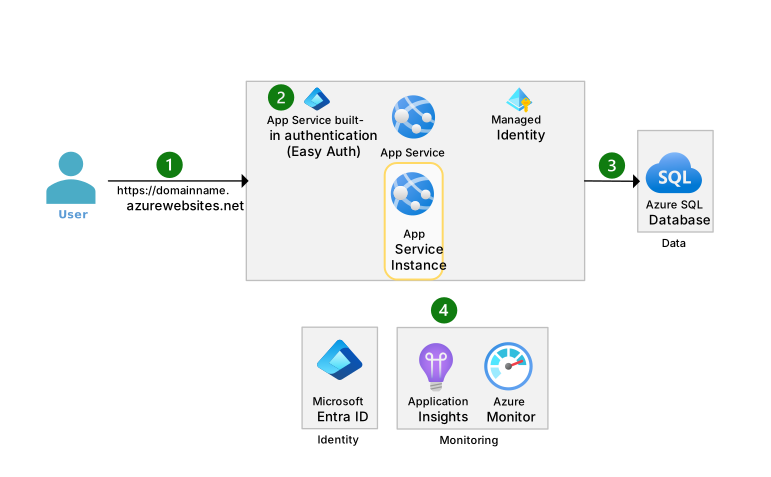
https://learn.microsoft.com/en-us/azure/architecture/web-apps/app-service/_images/basic-app-service-architecture-flow.svg
https://learn.microsoft.com/en-us/azure/ai-foundry/openai/media/use-your-data/ingestion-architecture.png?view=foundry-classic

Conceptual architecture showing Azure Web App securely accessing Azure OpenAI via private endpoints.

At a high level, the architecture looks like this:

  1. Client calls the AI application hosted on Azure Web Apps
  2. Azure Web App authenticates using a managed identity
  3. Requests are sent to Azure OpenAI Service over a private endpoint
  4. Secrets and configuration are resolved from Azure Key Vault
  5. Observability data flows to Azure Monitor and Application Insights

This design avoids API keys in code, minimizes public exposure, and supports enterprise networking requirements.


Application Design Considerations for AI Apps

Stateless by Default

Azure Web Apps scale horizontally. Your AI application should:

  • Treat each request independently
  • Store conversation state externally (e.g., Redis or Cosmos DB)
  • Avoid in-memory session affinity for chat history

This aligns naturally with AI inference patterns, where each request sends the full prompt or context.

Latency and Token Costs

When calling large language models:

  • Batch or compress prompts where possible
  • Avoid unnecessary system messages
  • Cache deterministic responses when feasible

These optimizations are application-level but directly affect infrastructure cost and scale behavior.


Identity and Security with Managed Identities

One of the most important design decisions is how the Web App authenticates to AI services.

Azure Web Apps support system-assigned managed identities, which should be preferred over API keys.

Benefits:

  • No secrets in configuration
  • Automatic credential rotation
  • Centralized access control via Azure RBAC

For example, the Web App’s managed identity can be granted the Cognitive Services OpenAI User role on the Azure OpenAI resource.


Networking: Public vs Private Access

For development or low-risk workloads, public endpoints may be acceptable. For production and regulated environments, private networking is strongly recommended.

https://learn.microsoft.com/en-us/azure/app-service/media/overview-private-endpoint/global-schema-web-app.png
https://miro.medium.com/1%2AJ3Y2zmLFxdbPnwAc4V535g.png

Private endpoint architecture eliminating public exposure of AI services.

Key components:

  • VNet-integrated Azure Web App
  • Private Endpoint for Azure OpenAI Service
  • Private DNS zone resolution

This ensures that AI traffic never traverses the public internet.


Secure Configuration with Azure Key Vault

Application configuration typically includes:

  • Model deployment names
  • Token limits
  • Feature flags
  • Non-secret operational settings

Secrets (if any remain) should live in Azure Key Vault, accessed using the Web App’s managed identity. Azure Web Apps natively support Key Vault references in app settings, eliminating the need for runtime SDK calls in many cases.


Infrastructure as Code: Bicep Example

Below is a simplified Bicep example deploying:

  • An Azure Web App
  • A system-assigned managed identity
  • Secure app settings
resource appService 'Microsoft.Web/sites@2023-01-01' = {
  name: 'ai-webapp-prod'
  location: resourceGroup().location
  identity: {
    type: 'SystemAssigned'
  }
  properties: {
    serverFarmId: appServicePlan.id
    siteConfig: {
      appSettings: [
        {
          name: 'AZURE_OPENAI_ENDPOINT'
          value: 'https://my-openai-resource.openai.azure.com/'
        }
        {
          name: 'APPLICATIONINSIGHTS_CONNECTION_STRING'
          value: appInsights.properties.ConnectionString
        }
      ]
    }
  }
}

This approach keeps infrastructure declarative and auditable, while relying on Azure-native identity instead of secrets.


Terraform vs Bicep for AI Web Apps

AspectBicepTerraform
Azure-native supportExcellentVery good
Multi-cloudNoYes
Learning curveLower for Azure teamsHigher
Azure feature parityImmediateSometimes delayed

For Azure-only AI workloads, Bicep offers tighter alignment with new App Service and Azure AI features. Terraform remains valuable in multi-cloud or heavily standardized environments.


Observability and Monitoring

AI applications require more than standard HTTP metrics. At minimum, you should capture:

  • Request latency (end-to-end)
  • Token usage (where available)
  • Model error rates
  • Throttling or quota-related failures

Azure Web Apps integrates natively with Application Insights, enabling correlation between HTTP requests and outbound AI calls when instrumented correctly.


Deployment Checklist

  • Azure Web App deployed with managed identity
  • Azure OpenAI access granted via RBAC
  • Private endpoints enabled for production
  • Secrets removed from code and configuration
  • Application Insights enabled and validated
  • Prompt and token usage reviewed for cost efficiency

Further Reading

  • Azure Web Apps overview – Microsoft Learn
  • Azure OpenAI Service security and networking
  • Managed identities for Azure resources
  • Private endpoints and App Service VNet integration
  • Infrastructure as Code with Bicep

Deploying AI applications to Azure Web Apps is less about model hosting and more about secure orchestration. By combining managed identities, private networking, and infrastructure as code, you can build AI-powered systems that are scalable, auditable, and production-ready without unnecessary complexity.

I hope you found this article useful.


Tags:


Using VS Code Beast Mode to learn

Subscribe to continue reading

Subscribe to get access to the rest of this post and other subscriber-only content.


Tags:


Azure Quick Review (azqr): A Practical Overview

If you’re managing resources in Azure, you’ve likely faced challenges around optimizing and securing your cloud environment. Azure Quick Review (azqr), an open-source tool from Microsoft, is a straightforward solution that can help you quickly assess your Azure environment and highlight potential issues. Here’s why azqr is so useful for your day-to-day cloud operations.

What is Azure Quick Review (azqr)?

Azure Quick Review is a command-line tool designed to simplify the assessment of your Azure subscriptions and resources. It’s available on GitHub (https://github.com/Azure/azqr) and provides an automated way to perform a high-level analysis of your Azure infrastructure. The main goal is to offer you insights into security, compliance, performance, and cost-related aspects of your Azure resources, all in a digestible format.

Why Use Azure Quick Review?

Managing Azure resources manually can become cumbersome, especially when your cloud footprint is growing. Azure Quick Review offers several practical benefits:

  1. Automated Assessments

azqr automates the assessment process for your Azure environment. Instead of manually checking each resource’s configuration, you can use azqr to perform comprehensive evaluations in minutes.

It covers key Azure resources like virtual machines, SQL databases, storage accounts, and more.

  1. Consistent, Standardized Reviews

One of the main issues with manual audits is inconsistency. Azure Quick Review brings a standardized approach to your resource analysis. It ensures that each assessment follows the same set of guidelines and best practices, which is particularly helpful when working in teams.

  1. Focus on Security and Compliance

Azure Quick Review evaluates the security posture of your resources by flagging configuration issues. It checks for vulnerabilities, like public endpoints where they shouldn’t be, or missing network security groups (NSGs).

You can use azqr to ensure your deployments comply with organizational policies or regulatory requirements. Its output can be a handy guide to tightening security gaps in your Azure setup.

  1. Cost Optimization Insights

As your Azure usage grows, so does the likelihood of mismanagement and unnecessary costs. azqr highlights resources that could be over-provisioned or underutilized, offering you potential cost-saving opportunities.

The report can help identify expensive configurations and unused resources that can be scaled back or shut down.

  1. Quick, Readable Reports

Azure Quick Review outputs the analysis in a clear and accessible format. The results include color-coded indications of areas needing attention and a summary that prioritizes key actions.

Reports generated by azqr are ideal for sharing with stakeholders or for keeping as a quick reference.

  1. Easy to Set Up and Use

Installation is simple. You can install azqr via Python’s pip, and from there, it’s easy to integrate into your existing workflows. If you already use command-line tools for Azure, azqr feels like a natural extension of that.

How to Get Started with azqr

Getting started is straightforward:

  • Installation: First, clone the GitHub repository or install it via pip (pip install azqr).
  • Running the Tool: You can use azqr commands to scan specific subscriptions or resource groups. The CLI provides flexibility to focus on exactly what you need.
  • Reviewing Results: Once complete, you get a summary report highlighting potential security gaps, compliance issues, and opportunities to optimize your resources.

For more details, check out the GitHub page: Azure Quick Review on GitHub

When Should You Use azqr?

Azure Quick Review is particularly useful in several scenarios:

  • Periodic Audits: Use azqr to conduct regular reviews of your Azure environment to ensure compliance and security standards are up to date.
  • Pre-Deployment Checks: Before making new services live, azqr can be used to review configurations and spot potential issues.
  • Cost Management Exercises: Regularly run azqr to help with cost audits, identifying waste or unnecessary spending.

Report

Here is what the report looks like, you get a list of Recommendations, ImpactedResources, ResourceTypes, Inventory, Advisor, Defender, Costs and Pivot Table tabs.

Summary

Azure Quick Review (azqr) is an invaluable tool for Azure users who want to stay on top of resource management without spending hours on manual reviews. It’s straightforward to use, delivers consistent insights, and helps you optimize both costs and security across your cloud environment. By incorporating azqr into your routine, you can gain a clearer understanding of your Azure resources and keep your deployments running efficiently and securely.


Azure Spring Clean March 2024

Introduction

Hello everyone, this blog post is my entry for this year’s AzureSpringClean event for 2024, which Thomas Thornton and Joe Carlyle run yearly.

This blog post covers how to save $$$ in Azure, so let’s dive straight in.

In this blog post which I also gave a talk on at the Glasgow Azure User Group in February, I cover how to check where you can save money in Azure, so at this point, you’re probably already spending more than you should, trust me there isn’t an environment I haven’t seen cost savings anywhere as yet, is something you need to check for regularly.


Azure Advisor

This is a free service in the Azure portal that uses AI to monitor your environment and it will recommend where you can save money, typically this is due to not using Azure reservations or your Virtual Machines needing to be resized, however, there are other areas across Azure where you can save money.

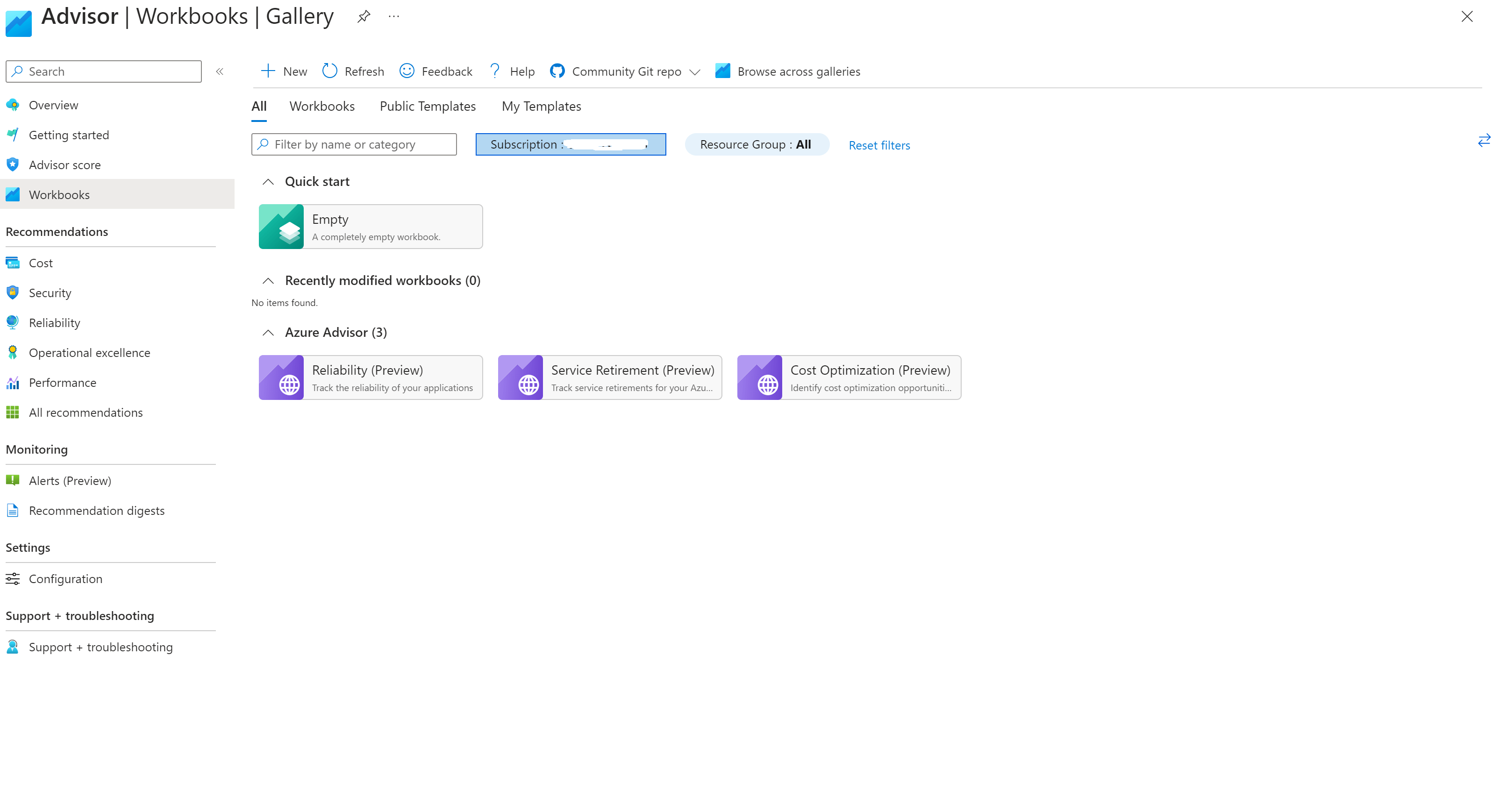
The screenshot below is of Advisor in Azure: –

We can use Advisor to check for the following kinds of recommendations:-

  • Cost
  • Security
  • Reliability
  • Operational Excellence
  • Performance

This article concentrates on Cost savings, but I highly recommend you check Advisor weekly.

If you click on Cost on the left you will see a screenshot like the one below: –

Here we can see all of the cost recommendations including right-sizing virtual machines, using reserved instances on SQL and Cosmos DB, and even reservations on App Service instances and more.


Reservations

Not a lot of people know this but you can add reservations for numerous different Azure resources, including things like managed disks and Blob storage, etc.

You save thousands of $$$ by making use of Azure reservations especially for Azure Virtual Machines, just make sure to rightsize them using Advisor recommendations before you add any reservations.


Azure Hybrid Benefit

Azure Hybrid Benefit allows you to use your existing on-premises Windows Server and SQL Server licenses with Software Assurance or qualifying subscription licenses to pay a reduced rate (“base rate”) on Azure services.

Instead of paying the full price for new Windows Server or SQL Server licenses in Azure, you can leverage your existing investments to save on costs.

You can activate AHB by purchasing licenses within Partner Centre and then applying them to your Azure Virtual Machine(s) like the following screen, the license costs around $260 but can save you thousands depending on the size of your Virtual Machine(s).


Azure Log Analytics Workspaces

Be careful what you log, make sure you are checking the usage and estimated costs on each of your log analytics workspaces. It is quite easy to turn on logging on app services or containers to try to locate issues in the code or performance tuning and forget to turn them off.


Cost Optimization

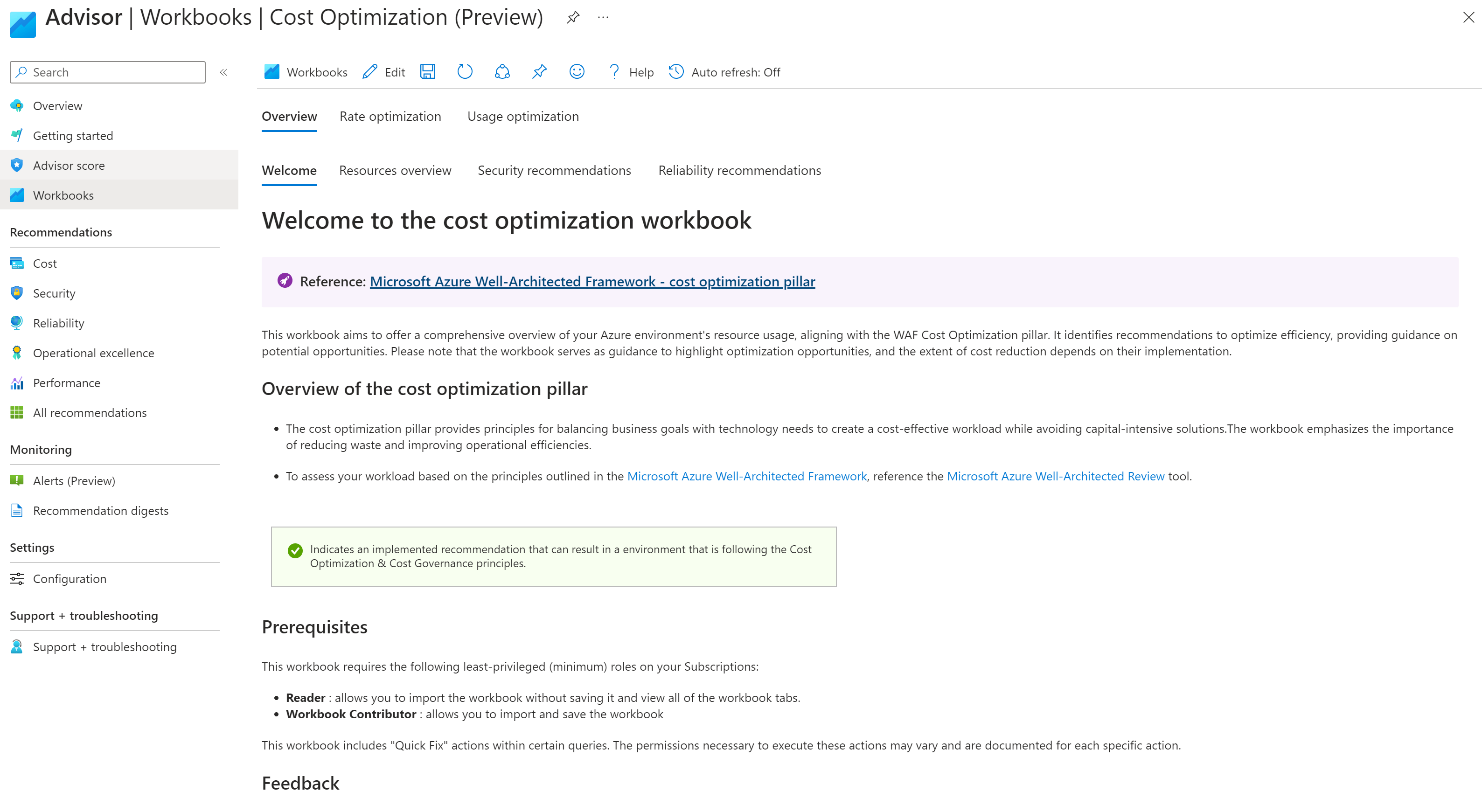
Within Advisor I want to point out a cool Azure Workbook – go to Advisor, click on Workbooks, and then locate the Cost Optimization workbook which is still in preview.

This workbook will highlight your Rate optimization and Usage Optimization and show you what you’re using and what you have forgotten to delete.

It shows you things like whether are you using all of your reservations and if you need more, it shows you things like unattached public IP addresses, deallocated Virtual Machines, and loads more, please do check it out.


Budgets

Every subscription should have an Azure Budget. I shall repeat this – Every subscription should have an Azure Budget.

Azure budgets allow users to set spending thresholds and receive alerts when their Azure spending approaches or exceeds those thresholds. This helps organizations to manage and control their Azure spending by providing visibility into usage and costs. This will stop you from getting a large bill at the end of the month and you would be shocked at the costs accumulated through the past month.


Summary

Check Advisor weekly, add a budget to all of your subscriptions, resize your Virtual Machines, make use of reservations, check how much you’re spending on logging, and also make sure you turn on Defender for Cloud (security thing not a cost thing).


Azure Exam DP-420: Study Guide Designing and Implementing CloudNative Applications Using Microsoft Azure Cosmos DB (Beta)

The following will be my study guide for the exam along with the following labs:-

https://azurecosmosdb.github.io/labs/

Don’t forget to subscribe to my YouTube Channel.


Design and Implement Data Models (35–40%)

Design and implement a non-relational data model for Azure Cosmos DB Core API

Remember a lot of this content is covered in the following GitHub labs:-

https://azurecosmosdb.github.io/labs/

Enjoy!

Don’t forget to subscribe to my YouTube Channel.


1 year in…

Background

Just before covid started I applied for a new job at a company called Intercept in the Netherlands, I had previously only met one of their employees Wesley Haakman whilst at Ignite in Orlando in 2019 I think it was. I spoke to him asking about what they were up to and then spoke to Holly Lehman and asked her opinion on the company, and by this time I was swaying towards accepting the position offered, after I spoke to Holly I was convinced it was the right move for me.

I joined Intercept later that year on September 1st, 2020. 1 year today.

Intercept isn’t like any other company I had worked for before, other companies were good for different reasons, but where I work now is different, more on that later.

During my time here at Intercept I reckon I have worked on at the very least, 26 different projects in the last 12 months using a large variety of Azure services. My background was as a developer, devops, sre and then a development team manager.


Tech

I chose Intercept mainly for my love of Azure and wanting to work on it day to day.

I have worked with the following Azure technologies thus far:-

Azure Networking, Azure Data Factory, Databricks, Event Hubs, Synapse Analytics, App Service, Azure Functions, Container Registry, Virtual Machines, Azure DevOps, Cosmos DB, MySQL, PostgreSQL, Azure SQL, Azure Active Directory, Azure AD B2C, Azure Key Vault, Security Centre, Azure Api Management, Azure API for FIHR, Azure Event Grid, Logic Apps, Noification Hubs, Service Bus, Automation, Azure Backup, Azure Lighthouse, Azure Monitor, Azure Policy, Azure Portal, Cloud Shell, Cost Management, Azure CDN, Communication Services, Azure Migrate, Site Recovery, Application Gateway, Azure Bastion, Azure DNS, Azure Firewall, Azure Front Door, ExpressRoute, Load Balancer, Traffic Manager, VPN Gateway, Azure Storage, Azure Data Lake Storage and more.


Workshops

I have presented 15 or more workshops covering Azure DevOps, Github Action, Azure Fundamentals and Cost Management. During covid we have done them all remotely, cannot wait until we deliver them in person at Microsoft offices around Europe – really looking forward to that.


Culture

The culture at Intercept is simply awesome, you’ll have to take my word for it, I don’t want to go on about it but I thank my lucky stars I work here regularly. We have a lot of fun and have what we call the Intercept Cafe 3 times a week where you can drop in and shoot the breeze with anyone who joins (i love this idea!).

Days off are encouraged, we work flexible hours, everyone speaks English very well (except me of course) and we win as a team, lose as a team, but we mainly kick butt as a team.


Day to Day

Day to day we create designs for customer all around Europe and then we implement the design. We also help customers with improving existing solutions and have teams of people in what we call the continous improvement teams. We only do Azure at Intercept and we work mainly with ISV’s (Independent Software Vendors).


Intercept are Hiring

I would never normally write a blog post about work, and mention were hiring, but things are different at Intercept. I went on holiday and had ZERO stress or feeling in my stomach about returning to work and that was a first.

We have colleagues in the Netherlands, England, Scotland, Northern Ireland, Germany and South Africa and had a recent colleague join from South America who moved to the Netherlands – we chat, play bingo, play xbox, and more.

Take a look at our vacancies page https://intercept.cloud/en/vacancies/


Other Stuff

This summer I decided to down tools and stop studying for exams, stop blogging, stop recording content and just enjoy the summer, thankfully its been the best summer I can remember. I have enjoyed golfing and still doing my bit in the community helping people but havent been sat at my laptop anywhere near as much as I have in the past.

I was renewed as an MCT and MVP and auditioned for being a trainer on LinkedIn Learning. The training part has been something have been thinking about doing for a while now, finding the time was impossible but not I think I may have decided thats the way I want to go.

I realise I love helping people, and whatever that entails, helping people get a leg up, bevoming MVP’s, helping people by mentoring them etc is what I love doing.


Career

People still ask me what I want to do, do I have any career goals? – I can honestly say at this moment I am enjoying life at Intercept. I love working with Azure, I love learning hence why I do so many exams, I have a passion for learning and a passion for helping people which will never leave me. If you’re not currently learning something you’re going backwards.

Don’t forget to subscribe to my YouTube Channel.


How to set environment variables for use with an Azure Function

There are many ways to pass variables into an Azure Function.

In this quick blog post I will show you how you can test the Azure Function locally with local settings and then use app settings from the Azure Portal and then also use values stored within Azure KeyVault incase we need to store and retrive secrets.

Ok, so to run our Azure Function locally I prefer to use C# Azure Functions, they just work, I can debug them in VS Code or Visual Studio – I am a dinosaur and been using Visual Studio since it first came out so I tend to stick with using that over VS Code, yes I am that old.

Moving on lets show how we can make use of variables whilst debugging locally, for this we just need to create a local.settings.json file like the one below:-

{
  "IsEncrypted": false,
  "Values": {
    "FUNCTIONS_WORKER_RUNTIME": "dotnet",
    "AzureWebJobsStorage": "UseDevelopmentStorage=true",
    "DemoUsername": "azuregreg",
    "DemoPassword": "letmein"
  }
}

So our code can now use a stored username and password to test with locally – we don’t check this file in as its only for testing locally (add a .gitignore file).

Ok so we can test our Azure Function with code that accesses the local variable and away we go.

So our function now outputs the following (remember this is from local settings) :-

this is gregors demo function - the username is azuregreg and the password is letmein


Now the interesting part next is how do we store variables in Azure and make use of them.

So, we have some options available to us, for things like username and password we can store them in Azure KeyVault, if they are simple settings then we can store them in appsettings within the Azure Portal.

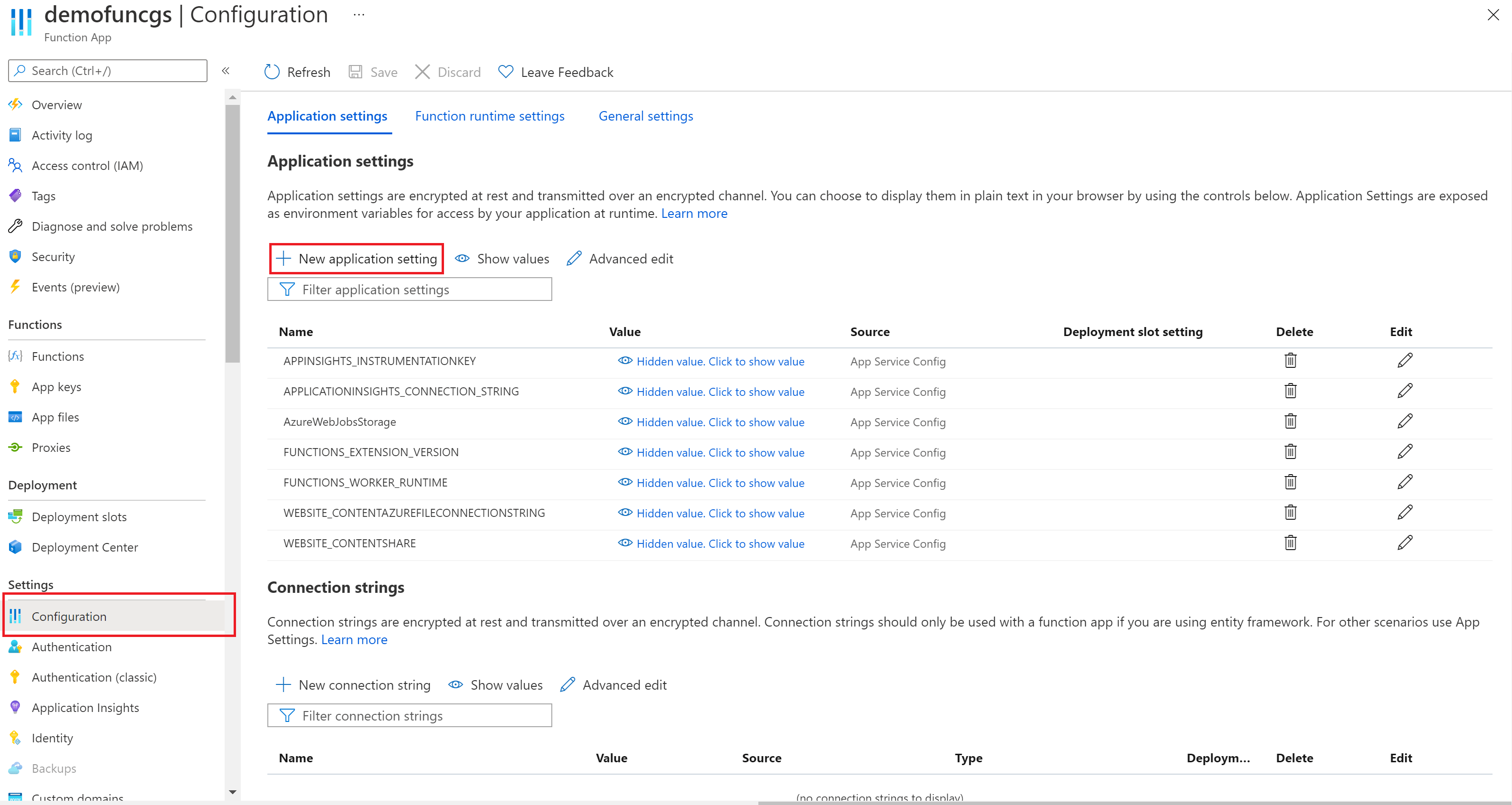
Let’s take a look at storing these variable in the App Settings section of the Azure Portal for our Azure Functions.

In the screen shot above we are in the Azure Portal and clicked into our Azure Function app and then click on Configuration and then + New application setting

Now we can add configuration values to our code, we can store setting here but sometimes we need to store secrets and for this we use Azure KeyVault, which we will return to shortly.

So lets add the username and password settings into the application settings and see how we can use them first of all.

So I went ahead and added them into the application settings section like so:-

In the screen shot above I clicked Show Values so that I can show you, the reader, the values I set exactly the same properties in the local.settings.json file when debugging locally – click Save.

Ok, so now we have added in some application settings, how does the code need to change to pick up these values from this area in the Portal? – well the good answer is we don’t need to change our code, it works exactly the same way as whilst using the local.settings.json file.

So the above works, but I hate when people say yeah but it works, yeah it works but can we make it better should always be the question – getting things working and making it as secure as it can be are different things altogether.

So why would we want to perhaps store the username and password in KeyVault? – glad you asked.

Maybe there is a username and password which you don’t want everyone to know, so you can add these values to KeyVault and not give anyone access to read the values for the password for example, but your application can read and use the value from the keyvault without anyone being able to see the password in plain text – sounds good to me so lets go set this up.

If you want to test this out I created a C# Azure Function which is basically just the following code, reminder the local.settings.json is at the start of the blog post.

C# Azure function code below.

[FunctionName("Function1")]
public static async Task<IActionResult> Run(
[HttpTrigger(AuthorizationLevel.Function, "get", "post", Route = null)] HttpRequest req, ILogger log)
{
    log.LogInformation("C# HTTP trigger function processed a request.");

    string username = Environment.GetEnvironmentVariable("DemoUsername");
    string password = Environment.GetEnvironmentVariable("DemoPassword");

    string responseMessage = "this is gregors demo function";

    return new OkObjectResult(responseMessage);
}

First we need to create a KeyVault and one you’ve done that, locate it and click on Secrets and create 2 new secrets, lets call then username and password for simplicity – set the values like so:-

username: azuregregviaappsettings
password: letmeinviaappsettings

When we run our Azure HTTP Function this time it picks up the values from the appsettings we just updated in the app settings section of the Azure function in the portal.

So our function now outputs:-

this is gregors demo function - the username is azuregregviaappsettings and the password is letmeinviaappsettings

Lets now change our existing app settings so that we get the details from KeyVault rather than just simply storing them in our app settings (where anyone can see them) – only people with the correct RBAC user rights can see our KeyVault secrets.

Ok now that we have our 2 secrets lets try to access them from the appsettings section of our Azure Function. Go back to the Azure Function and then click on Configuration and then we will be back at the screen that shows us our current applications settings.

Now lets edit the existing app setting called DemoUsername by finding the row and selecting the edit button as below :-

Lets past in the following
@Microsoft.KeyVault(SecretUri=https://<your keyvault name>.vault.azure.net/secrets/username) replacing <your keyvault name> with the name of your KeyVault like below.

Once you’ve done this for the username and password we can now use the values from our Azure Function.

Before this works we need to do a couple more steps – we need to create a managed identity and then also create an access policy within KeyVault.

To create a managed identity go to your Azure Function and then under Settings, select Identity. Change the status to On and click Save, also take a copy of the Object ID as we will need this later on.

Next we need to create an access policy within Kay Vault, so go into you’re KeyVault and select Access Policies, and then choose the + Add Access Policy link. Where it says Select principal, click the words none selected and then paste in the Object ID we took a note of above and then select it. Then within the Secret permission drop down select Get and List and then click Add.

Now go back to your Azure Function and select Configuration and then edit both your DemoUsername and DemoPassword app settings and then click save, They should now look like this:-

Notice in the screen shot above the Green Tick next to the words Key vault Reference, if this is red then check your steps with the managed identity, and creating the access policy above.

So our function now outputs:- 

this is gregors demo function - the username is azuregregfromkeyvault and the password is letmeinviakeyvault

And that is how you can run and test or function locally, using local.settings.json but also stored environment variables in app settings but also store them in KeyVault if they are secrets.

Don’t forget to subscribe to my YouTube Channel.


AI-102 Azure Study Guide

In this blog post I cover all of the resources I came across whilst studying for the AZ-102 Exam

AI-102: AI Engineer on GitHub: – https://github.com/MicrosoftLearning/AI-102-AIEngineerhttps://github.com/MicrosoftLearning/AI-102-AIEngineer

And this too:-

https://microsoftlearning.github.io/AI-102-AIEngineer/

Plan and Manage an Azure Cognitive Services Solution (15-20%)
Select the appropriate Cognitive Services resource


Azure DP-300

Azure DP-300 Exam Study guide

Plan and Implement Data Platform Resources (15-20%)
Deploy resources by using manual methods


Azure App Service

Troubleshooting App Services in Azure

In this blog post, I wanted to cover how to go about troubleshooting an App Service in Aure which is a web app with a SQL server backend whereby users have reported issues with the slow performance of the website.

The first thinh I tend to look at is the backend store, in this case, Azure SQL Server and we have some really great tooling we can use to troubleshoot perforamce issues with Azure SQL.

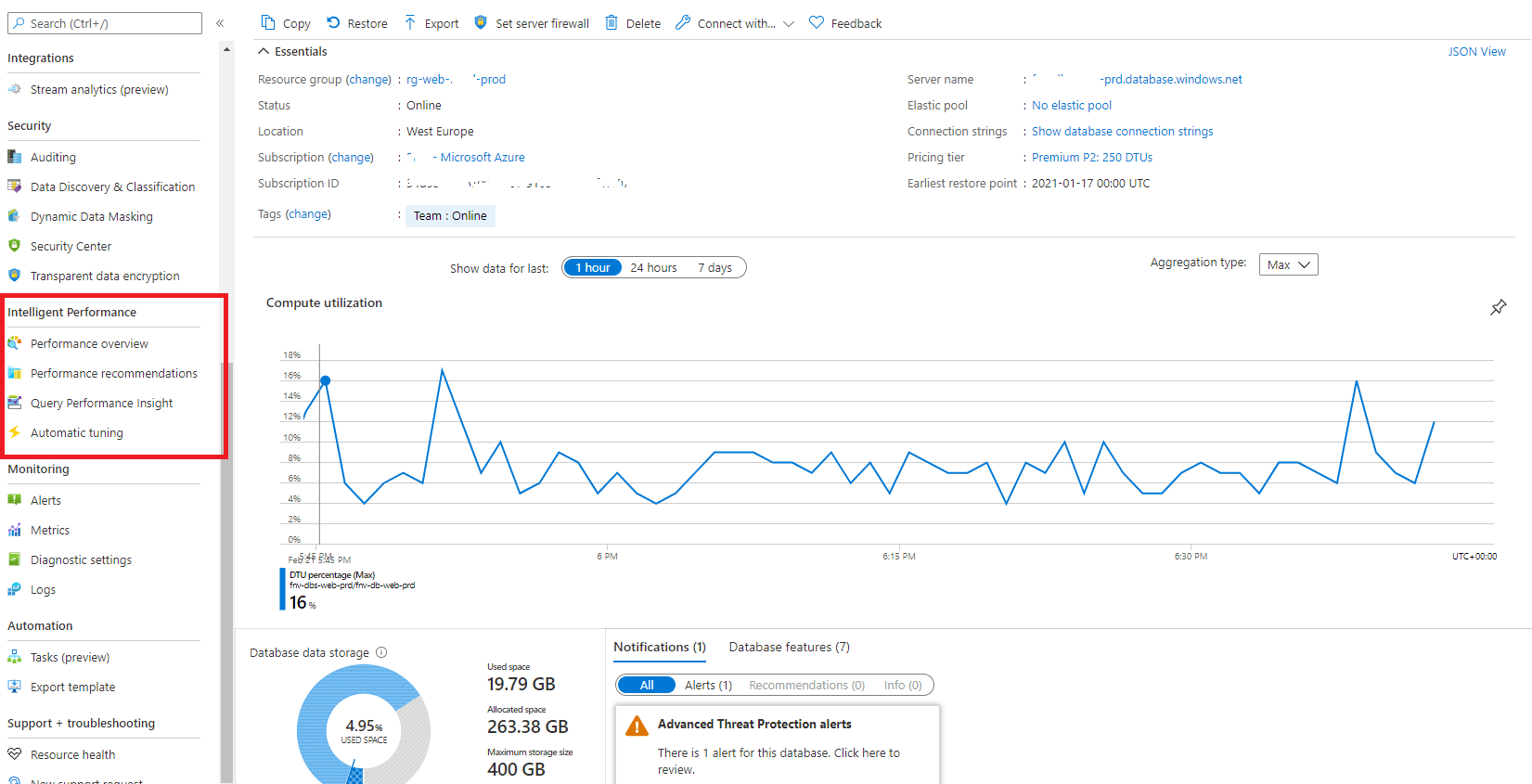
The first port of call was to open up the Azure Portal and go to the Resource Group with the issues and click on the SQL Server database and head to the Intelligent Performance section on the left-hand menu as highlight below: –

Performance Overview
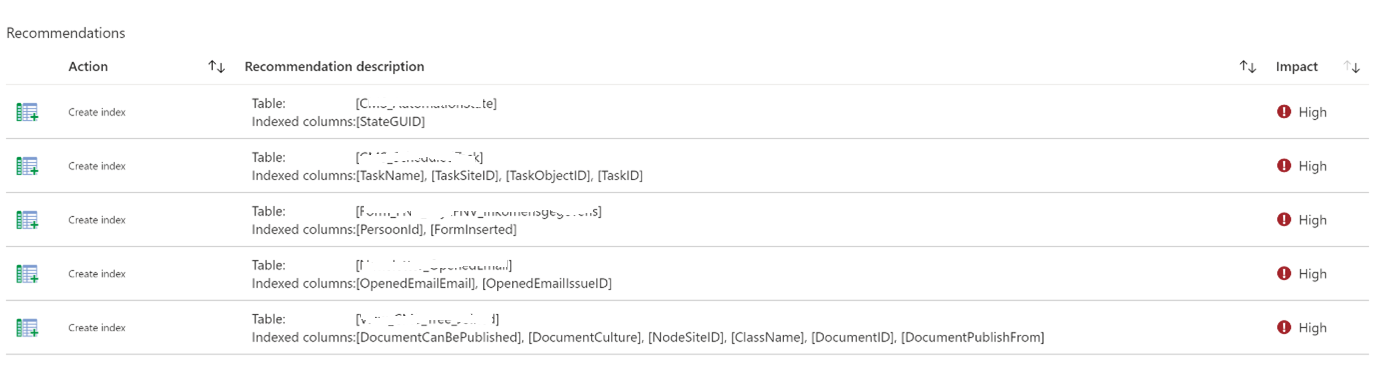
This currently has a recommendations area that suggests adding 5 different Indexes which are all set as HIGH impact.

Indexes can sometimes cause adverse effects so it’s recommended to look at the suggestions, copy the script from the recommendations and consider if this Index will indeed help with the performance of queries.

Query Performance Insight
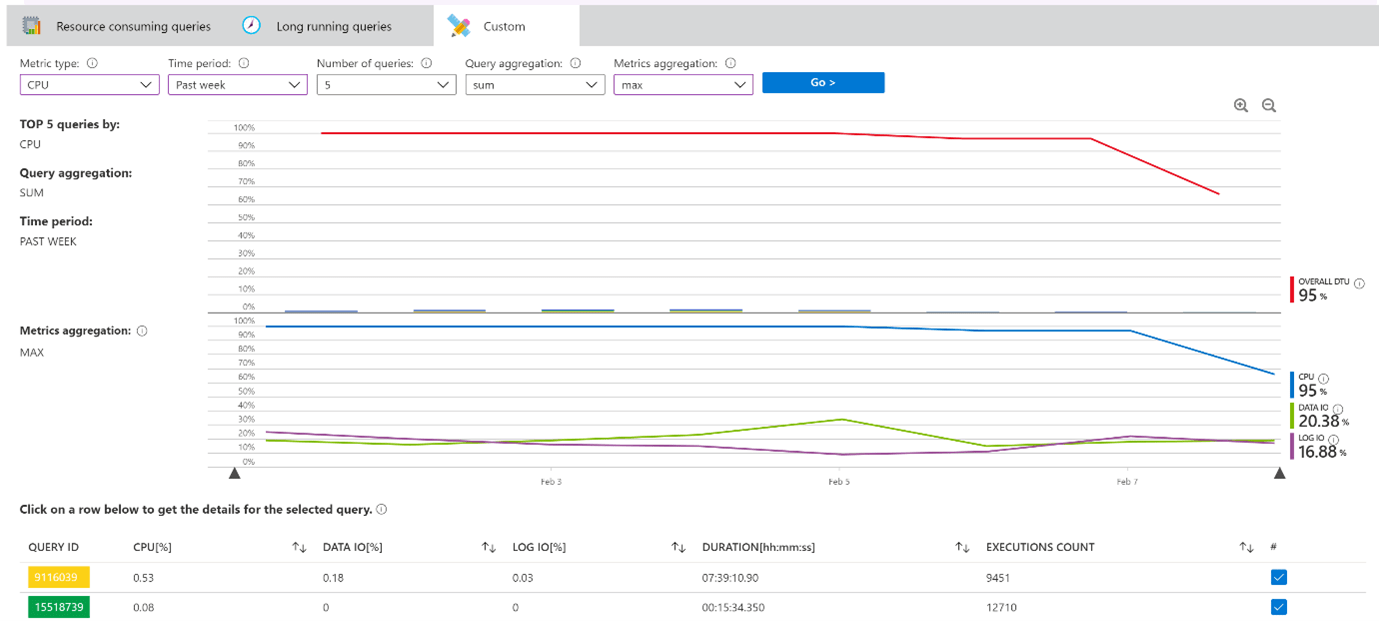
The second area I look at is query performance insight and from here we can see the average CPU, Data IO, Log IO on the SQL Server database across the last 24 Hours as an average. We also get an insight into what queries are running and taking the longest time to complete.

I changed the graph above to show the last 7 days and I can see CPU is maxed out at 100% for a long period within the last 7 days as seen below:-

Long Running Queries
This area identifies queries which are taking a long time to complete and always worth checking on this regularly.
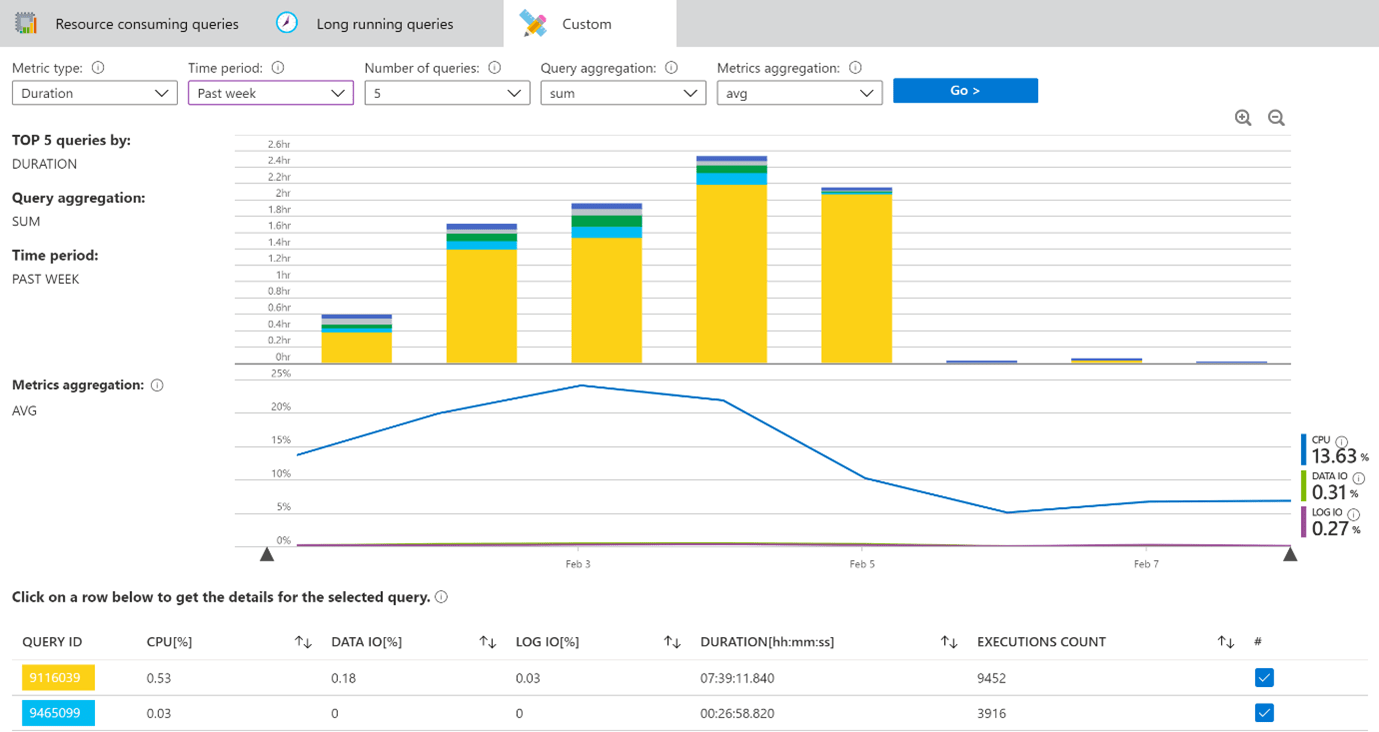
The following is a screen shot of long running queries within the database for the past week. To find this information select the database instance in the portal and then select Query Performance Insight and select Long running queries, then I chose custom and changed the time period to Past week.

We can see above the yellow query is the database query which has the longest duration this past week, you can click on the yellow area and it will show you the details of the query which is a long running query.

Automatic Tuning

Azure SQL Database built-in intelligence automatically tunes your databases to optimize performance. What can automatic tuning do for you?

  • Automated performance tuning of databases
  • Automated verification of performance gains
  • Automated rollback and self-correction
  • Tuning history
  • Tuning action Transact-SQL (T-SQL) scripts for manual deployments
  • Proactive workload performance monitoring
  • Scale out capability on hundreds of thousands of databases
  • Positive impact to DevOps resources and the total cost of ownership

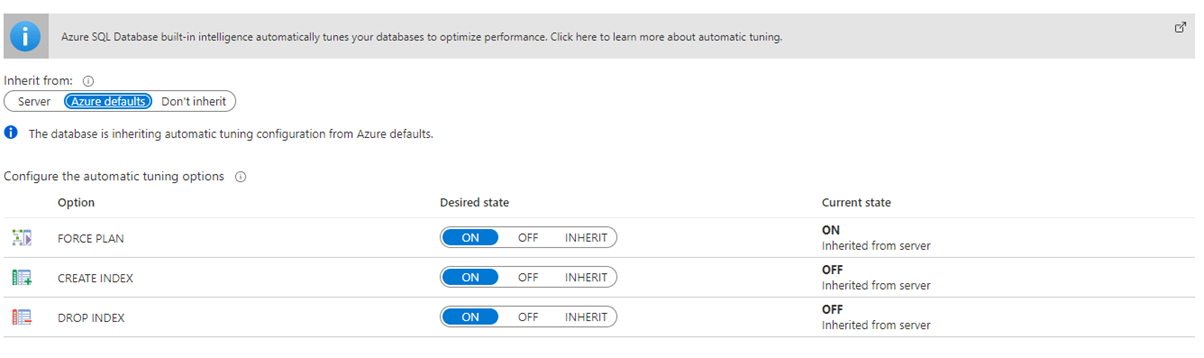
I would recommend that FVN turn this on and leave it like the following:-

This means that Azure will tune the indexes using built in intelligence and create indexes when it thinks you need them based on usage patterns. A word of caution here as these recommendations aren’t always correct so please bare this in mind.

Log Analytics
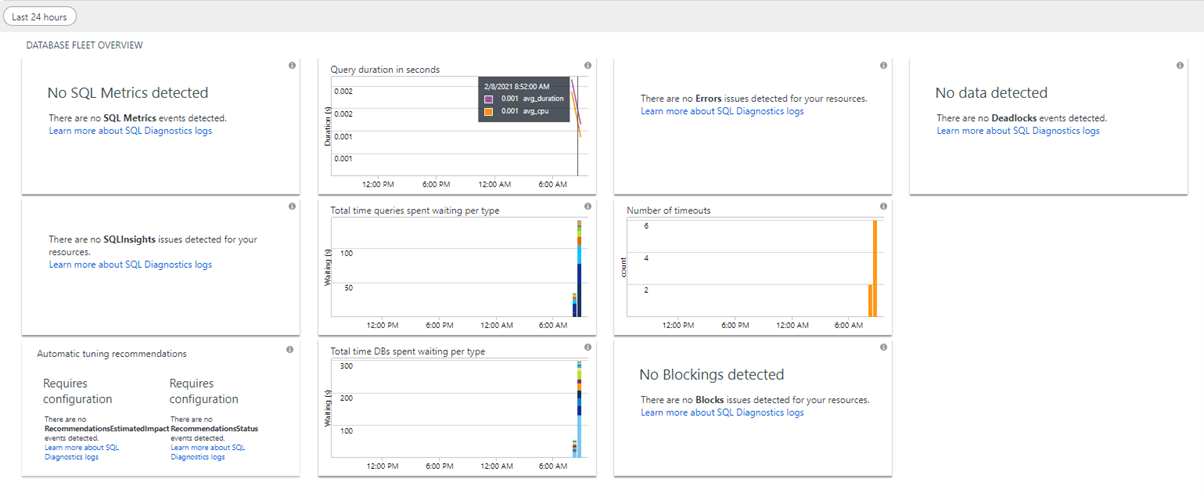
I always recommend adding the Azure SQL Analytics workspace solution to the subscription and this gives us further insight into the SQL Server in Azure. Once you turn this on you need to wait sometime before it can gather a decent amount of data.

The screen shot below shows us the type of information we can get from it, this screen shot was taken not long after being turned on so if you wait some time it will have much more useful details:-

From here we can get more information about deadlocks, timeouts, etc.


Now lets take a look at the website which is in an App Service in Azure and see what tool we can use to help us troubleshoot issues with the performance.

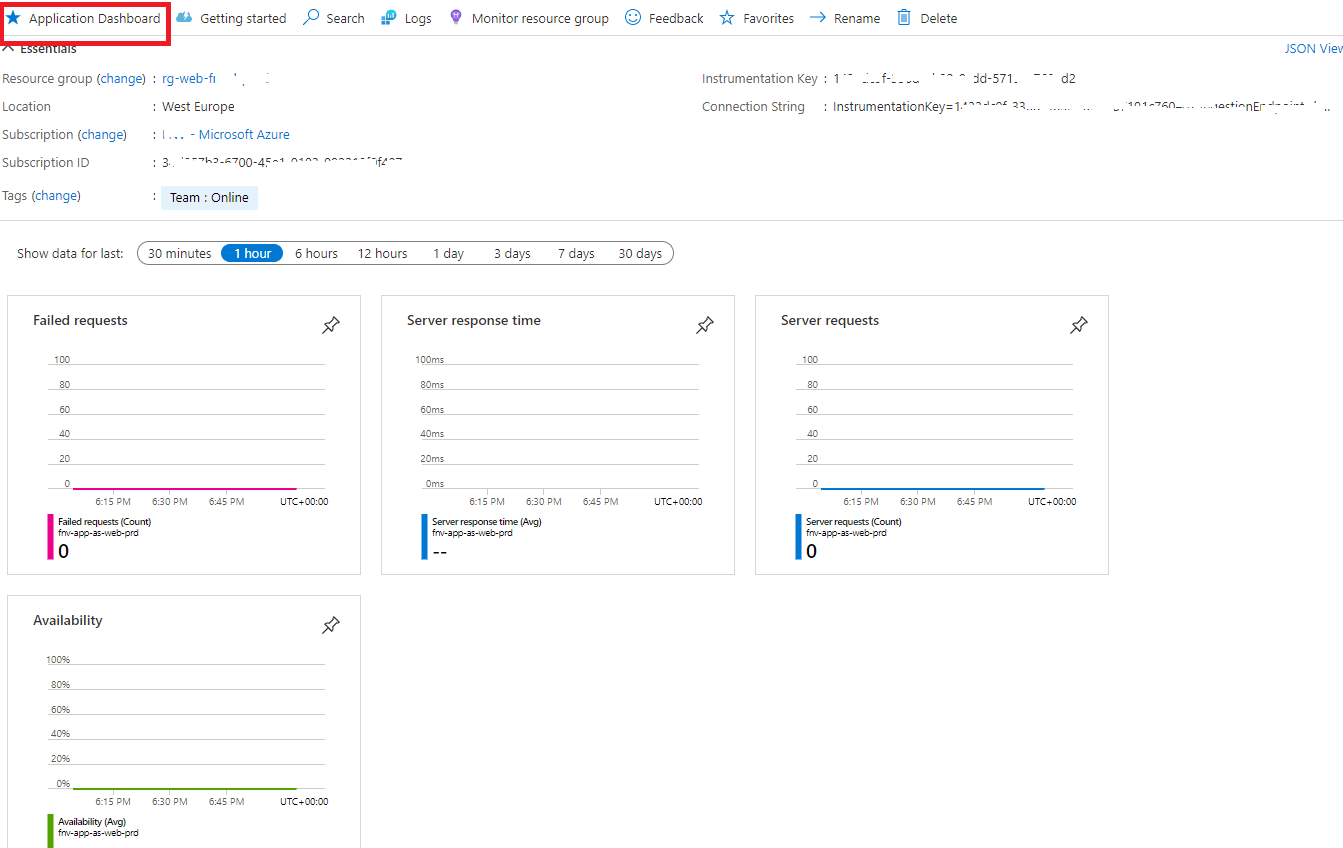
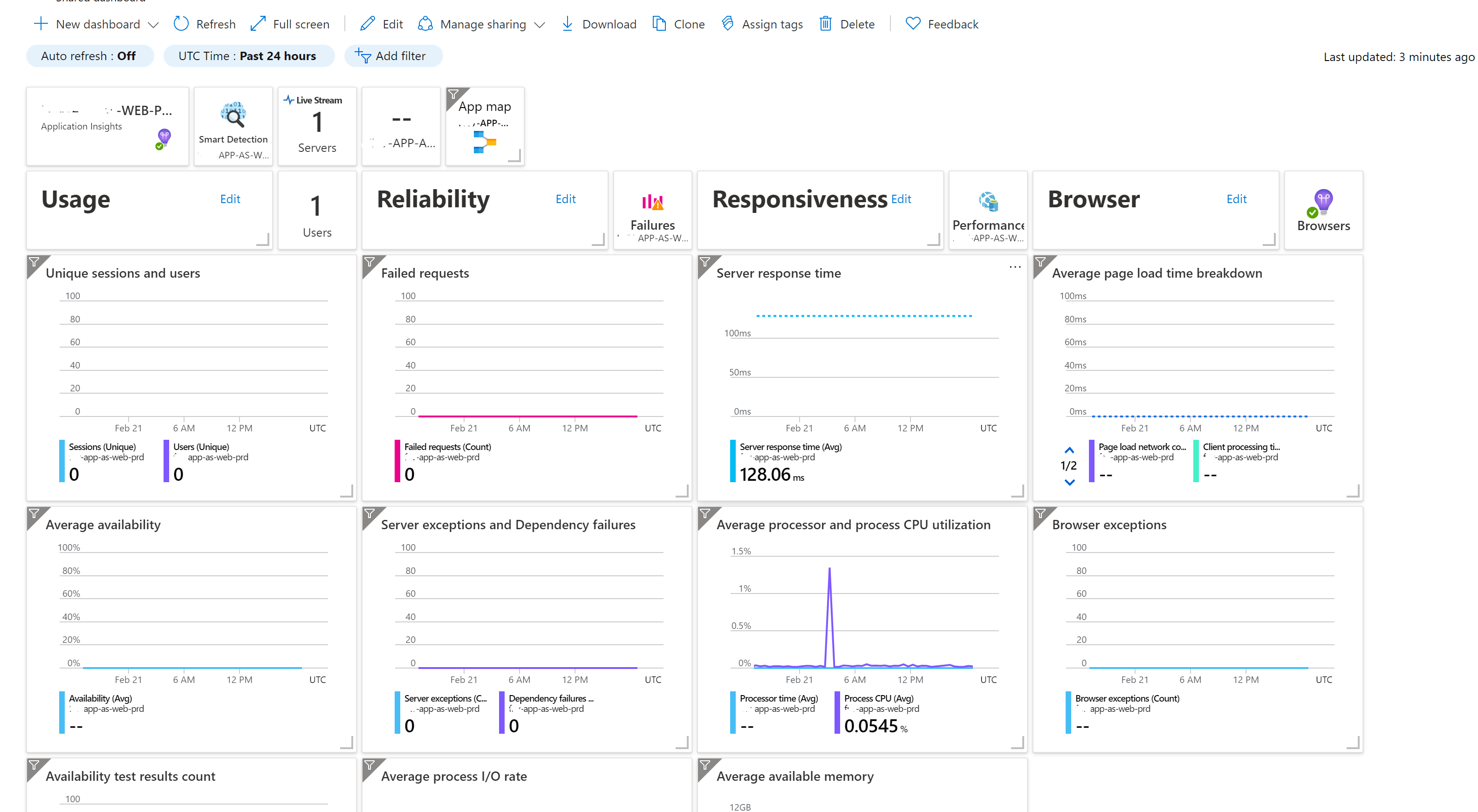
I always recommned adding Application Insights into Azure for resources when possible, and here if we click on the App Insights for the web app we can instantly get soe basic info. If you click on the Application Dashboard as seen below we get a high level vue of whats going on in our App Service.

The Application dashboard for a typical web app might look something like this: –

Ok, so let’s now do some further investigation into our app service issues. This time I chose the App Service itself and then I chose Diagnose and solve problems from the left-hand menu. This feature is underused in my opinion and is very useful indeed, not sure if many people have looked at it but it can be pretty helpful with recommendations and also pointing out some things that you may want to think about remediating.

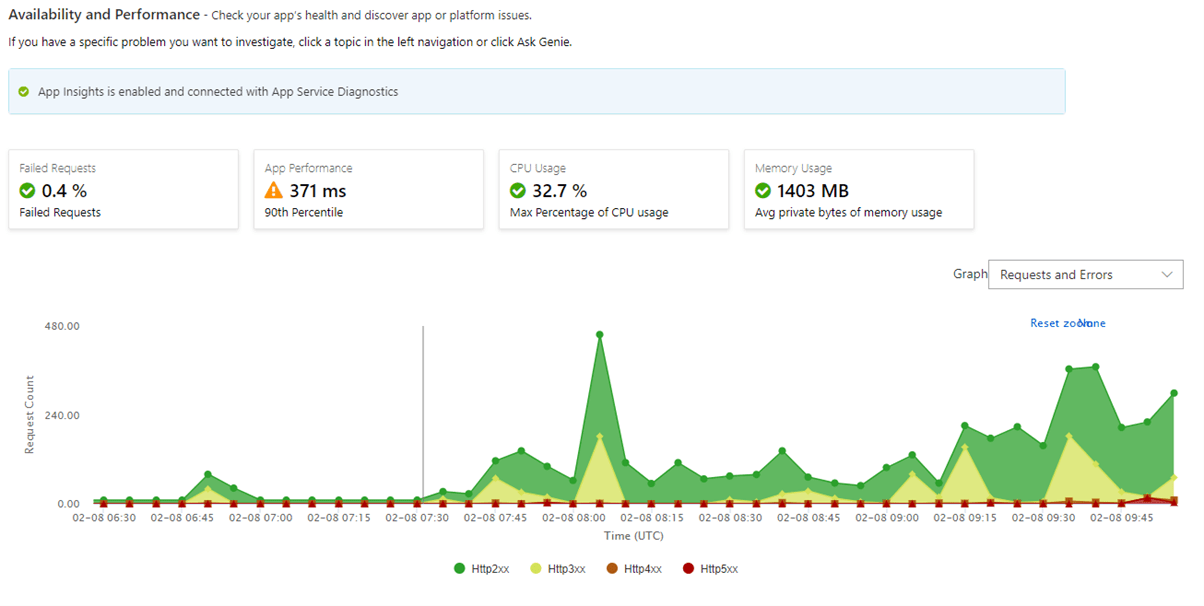
Once in the Diagnose and solve problems area I usually click on Availability and Performance within the Troubleshooting categories section and if you do, you’ll see something like this: –

In the image above we can see that we have some App Performance issues to go and investigate. Clicking into the App Performance section we get in-depth details about the Performance and we get Observations that say things like Slow Request Execution with details of the web page, average latency, total execution time, etc. The detail here is very helpful in tracking down potential issues in the code, or the configuration of your web application. There are a number of options to check within each section of the 6 troubleshooting categories, an example is shown below for the Availbility and Performance section: –

Summary
In summary, there are a number of really awesome tools to aid us with troubleshooting App Service perormance issues, go check them out the next time your web app is running poorly.