This blog post is my entry for this year’s wedoAI 2025 - shout out to Joe Carlyle and the organisers for organising this event every year - I really enjoy these community events, and contributing to these events is something I love to do.
If, like me, you write code of any kind and you are interested in learning about using AI to help you with this then this blog post will help you!
Lately, I have been playing around with GitHub Copilot Chat, which is an extension I use daily within Visual Studio Code. In this post, I will briefly mention how to set up Beast Mode in VS Code, practical tips and some real-world examples.
To get this adde to Visual Studio Code, fist make sure you have the latest version.
- Select the Help menu option and then Check for Updates
- Then click Install Update

Now that we have the latest version, now go ahead and click on the left hand menu and select the extension icon which is the icon in white on the left below, and install GitHub Copilot Chat.
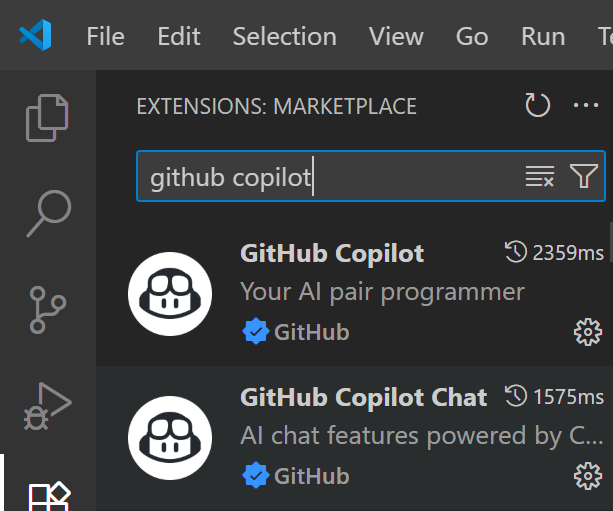
Now that we have GitHub Copilot installed we can continue. Now, let’s first introduce Beast Mode.
Setting Up VS Code for Beast Mode
Beast Mode is a custom chat mode which you can add into Visual Studio Code and is written by Burke Holland and you can read about it and install using his instructions -https://burkeholland.github.io/posts/beast-mode-3-1/
Beast Mode is all about maximizing VS Code’s features, extensions, and customizations to create an ultra-efficient learning environment for developers, students, or hobbyists.
Now I will assume that you have done some reading on this and added it to Visual Studio Code.
So what is a custom chat mode?, well I am glad you asked. To learn all about VS Code custom chat modes please check out the article - https://code.visualstudio.com/docs/copilot/chat/chat-modes
I would summarize custom chat modes as think of a subject you would like some help with and then imagine being able to chat to AI that can help you learn. I stopped short by saying help you learn, but what can you learn, well it depends on what you are insterested in learning.
Practical Examples and Use Cases
At work I write a lot of infrastructure as code and I use Bicep for this, however you can use whatever language you would like for whatever purpose you need.
Let’s try some examples now, to begin with lets download an example architecture diagram from the Microsoft Azure Architecture website - https://learn.microsoft.com/en-us/azure/architecture/browse/
Let’s choose the Basic Web Application - https://learn.microsoft.com/en-us/azure/architecture/web-apps/app-service/architectures/basic-web-app
I grabbed the image of this architecture and saved it to an emtpy folder which I have now opened up inside VS Code as seen below:

Now let us use the GitHub Copilot Chat mode feature making use of Beast Mode and lets ask it about this daigram to start off with.
I’ve opened up Chat mode and selected Beast Mode under Agent and asked it the following:
Tell me about this diagram in great detail. The result can be seen below:

As you can see in the picture above, you can use Beast Mode to explain the diagram, which in itself is very nice. Now, let’s ask the Beast Mode agent something else, let’s ask it to generate the Bicep for the Azure resources and make use of the Azure Verified Modules project which is on GitHub.
Azure Verified Modules
Azure Verified Modules (AVM) is an initiative to consolidate and set the standards for what a good Infrastructure-as-Code module looks like.Modules will then align to these standards, across languages (Bicep, Terraform etc.) and will then be classified as AVMs and available from their respective language specific registries.AVM is a common code base, a toolkit for our Customers, our Partners, and Microsoft. It’s an official, Microsoft driven initiative, with a devolved ownership approach to develop modules, leveraging internal & external communities.Azure Verified Modules enable and accelerate consistent solution development and delivery of cloud-native or migrated applications and their supporting infrastructure by codifying Microsoft guidance (WAF), with best practice configurations.
Ok, let’s see what prompt I use for this and see how it goes
**Prompt **- “Create a main.bicep file to deploy the Azure resources, but also create folders for each Azure resource and give the folders meaningful names. Also, use Azure Verified Modules and use a module and not a reference for each module - also make sure to use the latest version of each Azure module and add documentation to the code.”
Please note that this is an example prompt and that you may need to tweek it as you see fit, it wont get it right first time around but it will help you if you take some time to learn better prompts and get used to using it.
Let’s now try Beast Mode and write some C# code.
Prompt - “Write me an MVC Web Application using C# and the latest version of .net to display the latest azure updates in the last 2 months.”
If you run into any issues like unsure how to build the code, restore nuget packages or run it just ask the Beast Mode Agent, examples are like so:-
“show me how to build and run the application” “help me fix any buid errrors” “help me add tests to the code”
As you can see the Beast Mode Chat mode agent can help us with all sorts of issues. Incase you were wondering here is what it produced in lesst than 2 minutes without me writing a single line of code.

Ok, so its not the best looking UI you have ever seen, so let’s ask the agent to style it using a popular frontend framework called Bootstrap.
**Prompt **- “Style the output using Bootstrap to make it look a lot nicer visually.”

In the next example, let’s try to learn PowerShell from scratch, can Beast Mode help us with this?
Prompt - “Create a demo.ps1 file and help me learn how PowerShell as an absolute beginner in detail.”
Now Beast Mode goes off and creates a demo.ps1 file and explains the steps it will go through to achieve its goal.

First of all, it’s really nice to see the list of tasks the agent is going to perform. At time the agent will even go back and update this nice list of steps.
Once it had completed its tasks it asked me if I wanted some more advanced samples, so I said yes, please, then give me deeper explanations of the examples.

Now you could say ok, but how am I learning this by having AI do the work for me? - great question and you would be right to ask this. I would say use it to read the code, ask questions, prompt it for help if you get stuck, ask it to explain the code, write some code yourself and ask it to verify if it’s correct or not.
We have reached a point where what you can learn with AI is up to you; you have to learn to prompt it by asking questions, the more you use the agents the better your prompts will be.
I have written full applications using Visual Studio Code, GitHub Copilot Chat mode with the Beast Mode custom chat modes, and I think it’s pretty impressive.
Bonus Content
In this article, I showed you how to set up and use Beast Mode, but what if I said that you also have a mentor? You can create a mentor agent that will ask you questions, and you can ask them back, sound cool? - Definitely try this out as it’s super sweet to play around with.
https://github.com/PlagueHO/github-copilot-assets-library/blob/main/chatmodes/mentor.chatmode.md
The following is a list of invaluable chat mode agents. If you wish to learn more, then please check them out and shout out to the creator of these, Daniel Scott-Raynsford - https://github.com/PlagueHO/github-copilot-assets-library
Summary In summary, you can use Beast Mode for a vast number of things, such as
- write code
- fix code
- explain / document code
- write full applications
- ask it to help with build errors / compile errors
- use it as a mentor to learn
- and many many more things
I hope this helps you. Please share in the comments how you are using AI!. Let me know in the comments if you’re using AI and how you’re using it!