I was in one of my own key vaults this week looking for something else entirely when I noticed a certificate with the subject CN=Azure Firewall, a 12 month validity period, and nothing at all set up to tell me when those 12 months were nearly up. No contacts on the vault. The policy on the certificate had never been opened since the day it went in. This is a bit embarrassing, because a few weeks ago I published RateMyKeyVault, an app that marks vaults down for certificates expiring within 30 days, and I hadn’t switched on the free email that Key Vault will send you for exactly that.
It took about five minutes to fix. There are two settings, they live in two different places, and you need both. Setting only one of them gets you silence.
The two halves#
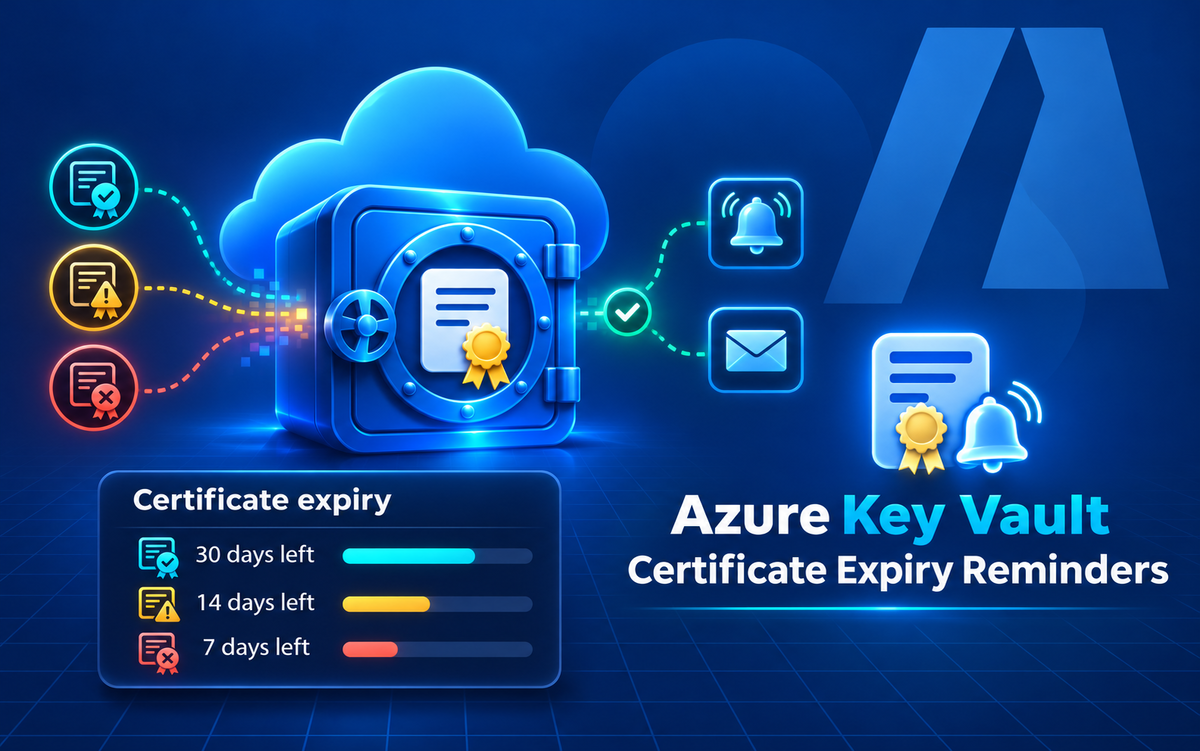
Key Vault splits the question “who should be told, and when?” in two. The who is a list of certificate contacts, and it belongs to the vault. The when is a lifetime action, and it belongs to each certificate’s issuance policy.
The docs describe contacts as shared by all the certificates in the key vault, and say a notification goes to every contact for an event on any certificate in that vault. So you can’t send the firewall certificate’s warning to one person and the app gateway’s to another if they sit in the same vault. Everyone on the list hears about everything.
The policy side is per certificate. Each certificate has one policy covering all its versions, and inside it is a lifetime action made of a trigger (a number of days before expiry, or a percentage of the lifetime) and an action, which is either emailContacts or autoRenew.
Adding the contact#
Open the key vault, go to Certificates, and there’s a Certificate Contacts button on the toolbar. Add an email address, save, done. Name and phone are optional and I’ve never filled them in.
Use a shared mailbox or a distribution list here, not your own address. A certificate that lasts a year will quite happily outlive your interest in the project, your holiday, or your job.
If you’d sooner script it, the CLI does it in one line:
az keyvault certificate contact add --vault-name kv-gs-demo --email platform-alerts@contoso.comAnd to see who’s already on the list:
az keyvault certificate contact list --vault-name kv-gs-demoYou need the certificates/managecontacts permission for this. On a vault using Azure RBAC, the Key Vault Certificates Officer role includes the certificatecontacts/write data action, so that role or Key Vault Administrator will do. On an access policy vault it’s the Manage Contacts tick box under certificate permissions. Being Owner of the subscription doesn’t count, which catches me out about once a year.
Filling in the issuance policy#
Now the when. Still in Certificates, click the certificate itself, and on the top menu bar choose Issuance Policy. This is the form you get, and these are the values I ended up with:
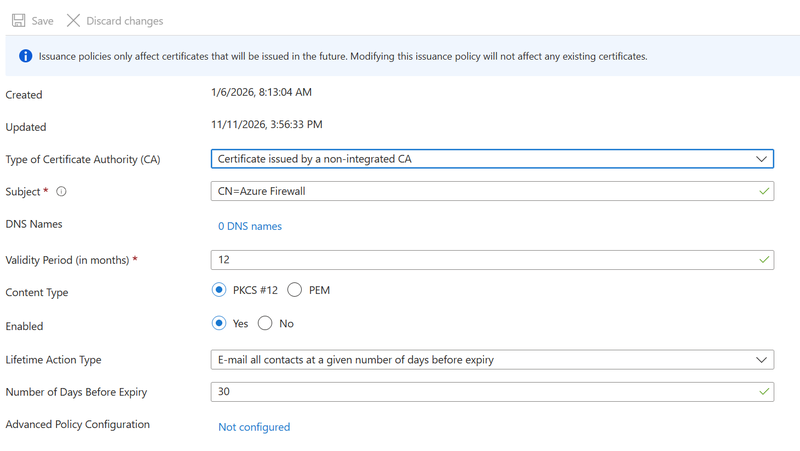
Most of the form describes how the next version of the certificate would be created: the CA type, the subject, DNS names, validity period and content type. For a certificate you imported, Key Vault filled those in by reading the certificate, and you can leave them alone. Mine says Certificate issued by a non-integrated CA, which means Key Vault can’t renew it for me whatever I pick, so an email is the only useful thing to ask for.
The two fields that matter are near the bottom. Set Lifetime Action Type to E-mail all contacts at a given number of days before expiry, and then Number of Days Before Expiry to however much warning you need. I went with 30. If getting a replacement means raising a request with another team or buying from a CA, be honest about how long that really takes and add a week. There’s a percentage of lifetime option as well, but I find days easier to reason about. “30 days before” means the same thing on every certificate. “80 percent” doesn’t.
Check Enabled is set to Yes, then Save.
One thing confused me. The blue banner at the top of the form says issuance policies only affect certificates that will be issued in the future, and that modifying the policy will not affect any existing certificates. Microsoft’s own tutorial on the same form says the opposite about this one field: changing the Lifetime Action Type “applies to the existing certificate immediately”. I’m going with the tutorial, because the notification would be useless otherwise, but I’d have liked the banner to say so.
The PowerShell version, for when you have more than a handful of certificates to do:
$policy = Get-AzKeyVaultCertificatePolicy -VaultName 'kv-gs-demo' -Name 'azure-firewall'
$policy.RenewAtPercentageLifetime = $null
$policy.RenewAtNumberOfDaysBeforeExpiry = $null
$policy.EmailAtNumberOfDaysBeforeExpiry = 30
Set-AzKeyVaultCertificatePolicy -VaultName 'kv-gs-demo' -Name 'azure-firewall' -InputObject $policy
I fetch the existing policy and change it, because Set-AzKeyVaultCertificatePolicy creates or updates the whole policy and I don’t want to find out which fields it resets when you only pass one. Run Get-AzKeyVaultCertificatePolicy again afterwards and you should see EmailAtNumberOfDaysBeforeExpiry : 30 with both renew fields empty.
What you actually get#
For a certificate set to email only, the docs say a notification is sent “when it’s time to renew the certificate”. One email, at the trigger point, to every contact on the vault.
If the certificate comes from one of the integrated CAs (DigiCert or GlobalSign) and is set to auto renew, the contacts get an email before the renewal and another afterwards saying whether it worked. That second one is the email you really want, because a failed auto renewal is otherwise invisible until something stops serving traffic.
A second alert that doesn’t depend on email#
I don’t fully trust a single email to a mailbox, so I add a log alert as well. Key Vault logs a CertificateNearExpiryEventGridNotification operation 30 days before a certificate expires, and it does this whether or not you have an Event Grid subscription. If the vault’s diagnostic setting sends AuditEvent to Log Analytics, this query from Microsoft’s Key Vault alerting page finds them:
AzureDiagnostics
| where OperationName =~ 'CertificateNearExpiryEventGridNotification'
| extend CertExpire = unixtime_seconds_todatetime(eventGridEventProperties_data_EXP_d)
| extend DaysTillExpire = datetime_diff("Day", CertExpire, now())
| project ResourceId, CertName = eventGridEventProperties_subject_s, DaysTillExpire, CertExpire
Turn it into a log search alert rule with a one day aggregation granularity, split by ResourceId, a threshold of 0, evaluated once a day, and point it at an action group. The docs tell you to add a dimension called DayTillExpire, which is a typo for the DaysTillExpire column in their own query. Unlike the email, this needs no per-certificate setup, so it also covers the certificate somebody imports next month without opening the issuance policy.
Caveats#
The 30 days on the log event is fixed. Only the email lets you choose the lead time, so if you need 60 days’ notice the issuance policy is where you get it.
Contacts are per vault and the lifetime action is per certificate, which means a new certificate in a vault with contacts can still be silent if its policy isn’t set to email. Check the policy every time you import one.
I couldn’t find a Bicep resource type for certificate contacts. They’re a data plane setting on the vault, and Microsoft’s own Terraform quickstart for them uses the AzAPI provider’s data plane resource. In my deployments this stays a CLI step after the vault is created.
The docs don’t mention any way to send a test notification, so you won’t know the address is right until the first real one arrives. Type it carefully. There are also Q&A threads where the eventGridEventProperties_ columns in that query weren’t present in someone’s workspace, so run the query once yourself before building an alert on it.
Final thoughts#
Pick the vault holding the certificate you’d least like to expire, open Certificates, and click Certificate Contacts. If that list is empty, as mine was, add a shared mailbox, then open each certificate’s Issuance Policy and set the lifetime action to email at 30 days. It costs nothing and it’s five minutes. I’d do it before the next 12 month certificate you’ve forgotten about reminds you itself.