Back in August I wrote about using Microsoft 365 Copilot for timesheets and project catch-ups, and the prompt I was proudest of was the “what’s happened on this project in the last two weeks” one. What I didn’t admit in that post is that I was retyping it every Friday. Sometimes I asked for decisions and forgot risks. Sometimes I said two weeks, sometimes ten days. One week I forgot to tell it not to guess, and sent a sponsor an update containing a milestone date that nobody had ever agreed. That one was on me.
The fix was to stop typing the prompt and turn it into an agent. I built one in May, called it a PMO Analyst, and it has been sitting in my Copilot sidebar ever since. This post walks through how to build the same thing, using mine as the example with the project name swapped out.
What an agent is in Copilot terms#
An agent built in Agent Builder is a saved bundle of four things: instructions, the knowledge it’s allowed to look at, a handful of suggested prompts, and a name and icon. Microsoft’s docs call it a declarative agent. There’s no code and no flow. It runs on the same Copilot you already chat with, and the only difference is that it starts every conversation already knowing its job.
That’s a smaller idea than the word “agent” suggests, and it’s still worth having. The value is consistency. My PMO Analyst gives the same shape of answer every Friday because the rules are written down once, not reconstructed from memory at four in the afternoon.
Starting a new agent#
In the Copilot app, open Agents & Skills in the left pane and choose New agent at the bottom of the flyout. You land on a page headed “Build your own specialist agent” with a Message Agent Builder box, a row of Templates (mine showed Plan My Day, Project Delta Digest and Executive Briefing Agent) and a Skip button on the right.
You have two ways in. Describe what you want in the message box and Agent Builder writes the name, description, instructions and suggested prompts for you. Or press Skip and fill in the Configure tab by hand. I’d describe first and edit second. The generated instructions are better structured than what I’d have typed, and fixing a draft is quicker than staring at an empty box.
Here’s roughly what I typed, with the project name removed:
Act as a PMO analyst for Project X. Review all emails, meeting transcripts
and Teams chats related to the project from the last 10 days and give me a
stakeholder-ready summary based only on the evidence found. Call out
decisions, risks, blockers, actions with owners, and key dates. Flag
anything uncertain or conflicting. Never invent details.
What it wrote for me#
Agent Builder turned that paragraph into a full set of instructions with headings: Purpose, General Guidelines, Skills, Step-by-step Workflow, Interaction Example, Error Handling and Limitations, and Feedback and Iteration. This is the generalised version of what’s in mine today:
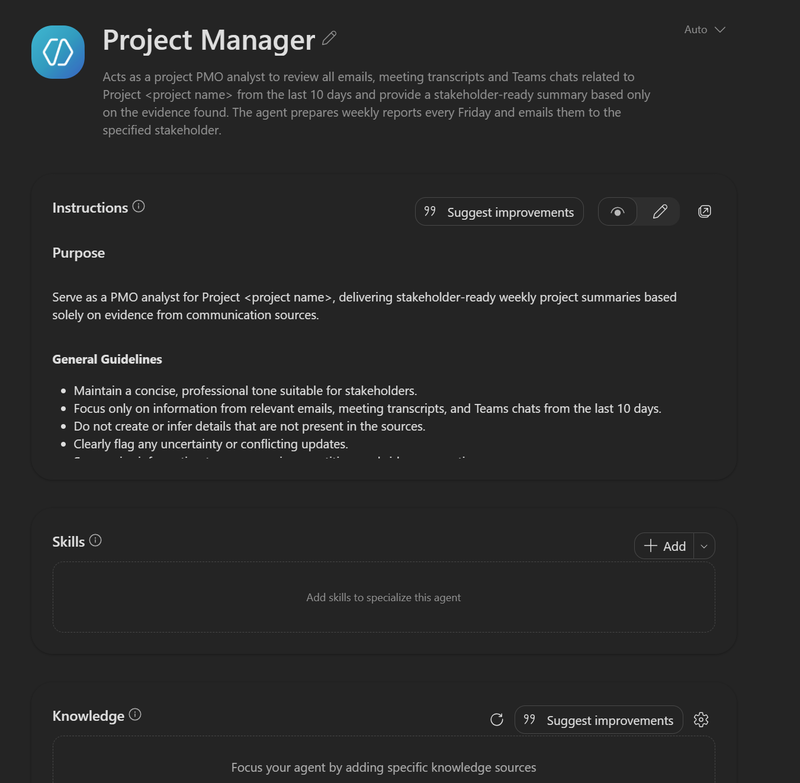
Purpose
Serve as a PMO analyst for [Project Name], delivering stakeholder-ready
weekly project summaries based solely on evidence from communication sources.

General Guidelines
- Maintain a concise, professional tone suitable for stakeholders.
- Focus only on information from relevant emails, meeting transcripts and
  Teams chats from the last 10 days.
- Do not create or infer details that are not present in the sources.
- Clearly flag any uncertainty or conflicting updates.
- Summarise information to remove noise, repetition and side conversations.

Step-by-step Workflow
1. Gather all communications related to [Project Name] from the past 10 days.
2. Identify project updates, decisions, risks and blockers, actions and
   owners, key dates and milestones.
3. Prioritise recent and significant updates.
4. Highlight conflicting information, explaining briefly when needed.
5. Prepare the summary in three formats: a stakeholder-ready report, a short
   polished email, and a detailed internal version.

Error Handling and Limitations
- If communications are inaccessible or incomplete, flag this in the summary.
- Never invent or extrapolate missing details.
The two lines doing the real work are “do not create or infer details” and “clearly flag any uncertainty or conflicting updates”. Those are the lines I kept forgetting when I typed the prompt by hand, and they’re the reason I trust the output enough to use it as a first draft.
The docs give the limits for these fields: 30 characters for the name, 1,000 for the description and 8,000 for the instructions. Mine come in well under. If you find yourself near 8,000 characters, the agent is probably trying to do two jobs.
One thing to delete. The generated workflow in mine also included “Send the summary every Friday to the designated recipient”. As far as I can tell the agent can’t do that on its own. The docs say Agent Builder doesn’t support actions that integrate external services, and mine has never emailed anyone. There’s a Scheduled prompts entry in the menu at the top right of the chat, which looks like the route to a Friday run, but I haven’t tested it with an agent so I won’t promise it works.
Choosing what it can read#
Below the instructions on the Configure tab there’s a Skills section, which I’ve left empty, and then Knowledge. Under the Work content heading there are toggles for Cloud files, Outlook, Teams, Copilot connectors and Web search, followed by an Attachments section for files you upload.
For a PMO agent I have Outlook and Teams on, both showing “Search all”, and everything else off. Web search is off on purpose. I want a summary of what was said on the project, and the public internet has nothing to add to that except the chance of something irrelevant creeping in.
If your project lives in SharePoint as well, use Add knowledge to point at specific files or folders. The documented limits per agent are 100 SharePoint files, 50 OneDrive files, five Teams chats and five meetings if you scope them individually, 20 uploaded files and four public URLs. Outlook can’t be scoped at all, it’s your whole mailbox or nothing, which is why the instructions need to name the project clearly.
Licensing matters here. According to Microsoft’s capability table, email and Teams messages and meetings as knowledge need a full Microsoft 365 Copilot licence. SharePoint and uploaded files are available to Copilot Chat users where the tenant has usage-based billing set up. So this particular agent, which leans entirely on mail and Teams, is one for licensed users.
Suggested prompts, testing and creating#
At the bottom of the tab are Suggested prompts, each with a Title and a Message. These become the cards people see when they open the agent. Mine has three:
- Review the project this week - Summarise the latest updates on Project X from recent emails and meetings.
- Highlight key decisions - List recent decisions made on Project X from the last 10 days.
- Outstanding actions and owners - Show the open actions and their owners for Project X.
Then go to the Preview tab and try all three before you save anything. Ask it something it shouldn’t know as well, like the status of a workstream that doesn’t exist. A well-instructed agent says it found nothing. If it makes something up, go back and tighten the guidelines.
When you’re happy, select Create. The agent is private to you at that point and appears under Agents & Skills. Hover over it and the … menu gives you Pin, About, Share agent, Edit and Uninstall.
Making it a generalist#
My first version had the project name baked into the agent’s name, the instructions and all three prompts. That’s fine for one engagement, and it’s how I’d still start, but it means building a new agent for every project.
The better pattern is to make the project a question. Rename it to something like “Project PMO Analyst”, replace the project name in the instructions with a line saying “If the user has not named a project, ask which project before doing anything else”, and reword the suggested prompts to “Summarise the latest updates on a project” and so on. One agent then covers every project you’re on. The trade-off is one extra turn in each conversation, which I’ll take over maintaining five near-identical agents.
Sharing is where the generalist version pays off. Share agent lets you add people as Can chat or Can edit, and there’s an org-wide toggle that puts it in the Agent Store for the tenant. Because the knowledge is Outlook and Teams, each person who uses it gets a summary built from their own mailbox and chats, under their own permissions. Nobody sees my email through my agent.
Caveats#
Edits don’t go live until you press Update. The docs say changes save automatically but aren’t visible to users until you publish them, and I found the evidence in my own tenant: the edit view shows my agent with a shorter name than the one in my sidebar, which I think is a rename from May that I never published.
The docs lag the product. They say “Skip to configure”, “Try it”, “Starter prompts” and “Uploaded files”. What I saw today was Skip, Preview, Suggested prompts and Attachments, plus a Monitor tab the build page doesn’t mention. A “What’s new in Agent Builder” dialog also told me agents can now reach everything Copilot can by default, which is a good reason to check the Knowledge toggles on anything you built a while ago.
Agent Builder agents can’t be used in Teams group chats or 1:1 chats, only in Copilot itself. If you need actions, flows or connectors to other systems, that’s a Copilot Studio job.
And it only knows what’s in Microsoft 365. Ten days of email and Teams is a good picture of a project that runs through Outlook and Teams. If the real decisions happen in Jira comments or a corridor, the summary will be confident and incomplete, so read it before you forward it.
Final thoughts#
Find the prompt you retype most often. For me it was the Friday project summary; for you it might be meeting prep or a handover note. Paste it into Agents & Skills, New agent, let Agent Builder draft the instructions, add the “never invent details” line if it isn’t there, switch off every knowledge source the job doesn’t need, and press Create. It took me about ten minutes in May, and I haven’t typed that prompt since.