I spent more time than I expected on a deceptively simple question while building this one: which Azure Firewall are we talking about? The familiar hub-and-spoke firewall and the one inside a Virtual WAN secured hub both have “Azure Firewall” in the name, but their policies are not interchangeable. I didn’t want to flatten that difference into one score and pretend it was useful.
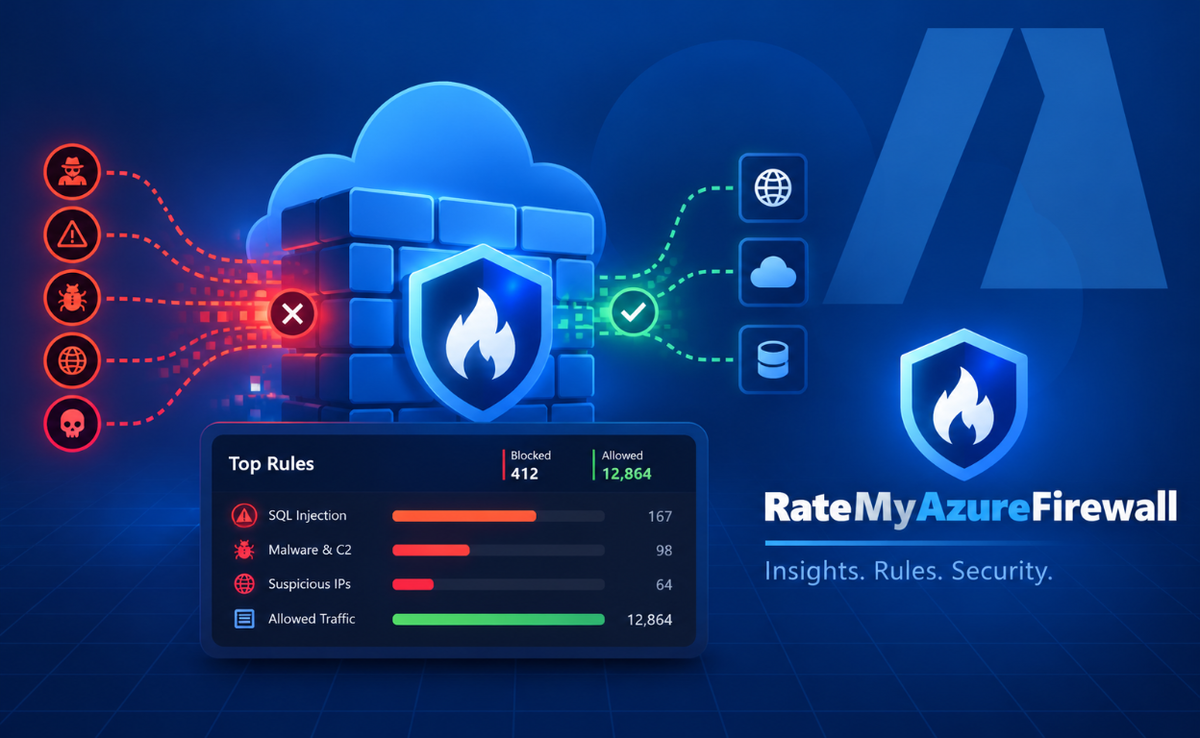
RateMyAzureFirewall is the next app in the RateMy family. It scans the subscriptions you select, grades each firewall from A to F, and shows the settings and rules behind the grade. The idea is the same as RateMyWAF and RateMyAzureBackups: turn a pile of Azure configuration into a review you can act on, without making changes on your behalf.
Two deployment models, two flows#
The home page gives you two separate routes. VNet Firewalls covers Azure Firewall deployed in a hub virtual network, including older firewalls that don’t report a SKU name. The app rates the Firewall Policy attached to the firewall, or the classic inline rules if that’s what it uses.
Secured Hub Firewalls covers firewalls inside Virtual WAN secured hubs. These are managed through Firewall Manager, and their effective configuration can come from more than the policy attached directly to the firewall. Microsoft’s Firewall Policy hierarchy documentation describes how child policies inherit rules and settings from a parent. RateMyAzureFirewall resolves that inheritance before rating the rules, threat intelligence and IDPS settings. That matters: looking only at the child policy could miss settings the firewall is actually inheriting.
Each route has its own scope, results and log analysis. You can scan one deployment model without mixing it with the other, and the subscription picker highlights where it found that type of firewall. It is a small bit of guidance that saves a surprising amount of scrolling in a tenant with a lot of subscriptions.
What goes into the grade#
The score is 100 points across six categories. The weights are deliberately visible in the app, so you can see what the tool thinks matters rather than treating a letter as a mysterious verdict.
| Category | Points | What it looks at |
|---|---|---|
| Policy and rule coverage | 30 | A policy or classic rules attached, application rules for FQDNs, and network rules |
| Threat intelligence | 20 | Whether threat intelligence is set to Deny, Alert or Off |
| IDPS and TLS inspection | 20 | Premium tier, IDPS mode and TLS inspection |
| Logging and monitoring | 15 | Firewall diagnostic logs, and whether they flow to Log Analytics |
| Rule hygiene | 10 | Broad any-to-any network rules, wildcard application rules, and DNAT rules exposing RDP or SSH to any source |
| Hardening extras | 5 | DNS proxy, availability zones, and web categories or URL filtering |
The raw score maps to the usual bands: A starts at 90, B at 75, C at 60, D at 45, E at 30, and below that is F. But the caps are just as important as the points. No policy or rules means an F. An empty policy caps the grade at D. Threat intelligence off also caps it at D, and Alert-only caps it at C. No IDPS, or firewall logging switched off, caps it at B.
That stops a healthy-looking score in one area from hiding a gap I wouldn’t want to gloss over. A firewall can earn points for its zones and logging, for example, but that doesn’t make threat intelligence being off disappear from the result.
The results also include improvement suggestions, ordered by points gained. Each one shows the grade it would produce if you made that change. Where an improvement resolves one of the grade caps, the resulting grade calculation accounts for that too. So it is easier to distinguish “this adds a couple of points” from “this is the change holding the firewall back”.
The weights are my choices for a practical review, not a Microsoft certification or a promise that an A means a firewall is secure. I wanted the criteria to be inspectable and useful for deciding what to look at next. Your architecture and risk tolerance still matter.
From scope to findings#
The app walks through three steps. First, choose the tenant and subscriptions to scan. Then review the grades. For each firewall you can see its score breakdown, findings with remediation guidance, policy inventory and downloadable Word reports. On the secured hub route, the inherited configuration is included in what gets assessed; on the VNet route, classic rules are included when there isn’t a Firewall Policy.
The last step is Logs. The app discovers Log Analytics workspaces the signed-in identity can access and uses the workspace indicated by the firewall’s diagnostic settings when it can. You can then review firewall activity, compare a selected period with the one before it, and see suggested actions for the activity that stands out.
The log view groups activity into three assessments: Likely real attack, Possible false positive, and Needs review. Those labels are a way to prioritise what to investigate, not an incident-response verdict. A threat-intelligence or IDPS signature is a strong signal; other classifications use patterns such as destination, port, source and event volume. I would use the explanation beside a classification to decide what to check, rather than treating the label as proof.
Trying it without pointing at a tenant#
There is a Try with sample data button on the home page. It runs both flows against a built-in sample estate, with examples across the grade bands, without calling Azure. That is the quickest way to see the grade breakdown, findings and log screens before deciding whether the scoring fits how you work.
To run it locally against Azure, the project needs the .NET 10 SDK and Azure CLI. From the repository root:
az login
cd src/RateMyAzureFirewall
dotnet run
Open http://localhost:5220, choose a flow and select the subscriptions you want to review. The scan uses Azure Resource Graph and ARM read operations. The identity needs Reader access to those subscriptions; to use the Logs step, it also needs Log Analytics Reader on the workspace containing the firewall logs.
Read-only, with one important hosting warning#
The app does not modify Azure resources. The PowerShell fix scripts it offers are there for you to review and run yourself; nothing applies a change automatically. That boundary is important for a tool that inspects security rules.
Read-only does not mean safe to expose without thought, though. RateMyAzureFirewall has no sign-in of its own. People who can reach the running app use the Azure credential it was started with. On a workstation that is a reasonable local tool. If you host it with a managed identity, put authentication you control in front of it first. Otherwise, anyone who can reach the URL may be able to see the subscriptions that identity can read.
Caveats#
The first caveat is scope. The app can only report on subscriptions the identity can see, and missing permissions can make the estate look smaller than it is. A clean-looking scan is not evidence that every subscription in the tenant was included.
The second is that an A-to-F grade compresses detail. Use the category breakdown and findings to understand why a firewall received its grade, and treat the score as a starting point for a review, not a substitute for one. The log classifications are similarly there to help you triage activity, not replace checking the underlying events and the workload that generated them.
Finally, the grade depends on the rules and settings the scan can read. A firewall that references a policy outside the selected scope cannot be assessed as if that policy were empty. Make sure the subscriptions you select include the resources and policies you expect to review.
Final thoughts#
Try the sample estate first, then scan one deployment model in a subscription you know well. If a grade surprises you, start with the category breakdown and the first improvement that changes the resulting grade. That is a more useful conversation than arguing about the letter on its own.